


U.2 vs NVMe M.2
Published date: 12 May 2026
Introduction
Choosing an SSD is no longer just about capacity and price. For many IT buyers, the bigger questions are physical fit, serviceability, cooling, and whether the drive is aimed at laptops, desktops, or server racks. Two terms that often cause confusion are U.2 and NVMe M.2. Both can deliver NVMe performance, both can use PCIe lanes, and both are common in modern systems, but they are designed for different environments and solve different problems.
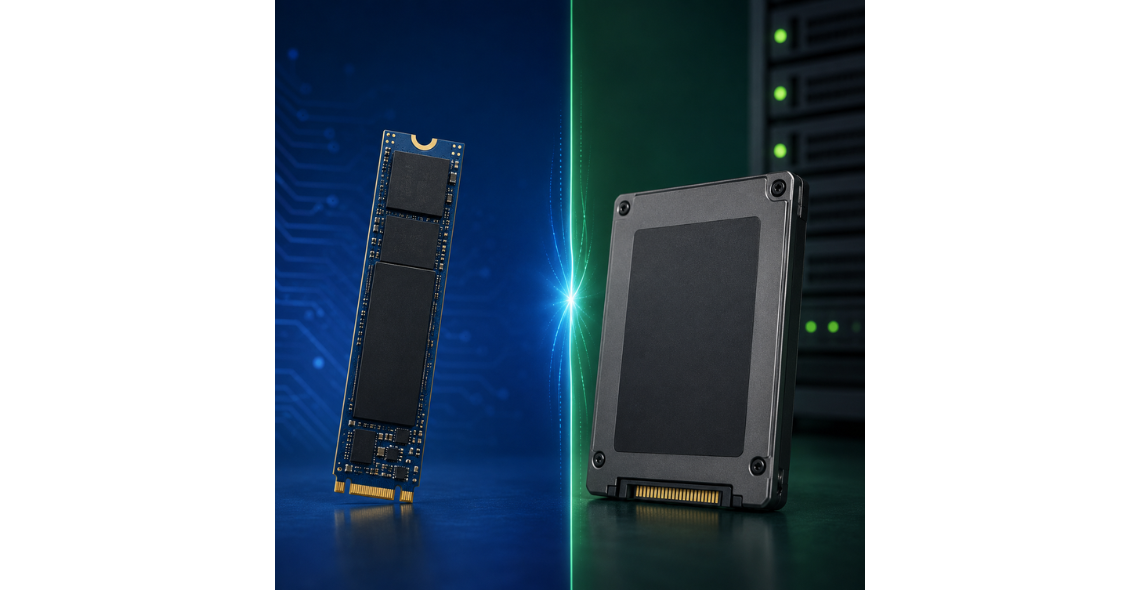
U.2 is a cabled, 2.5-inch drive format that brings NVMe storage into a hot-swappable, front-accessible bay, which is a major advantage for servers and workstations that need easy maintenance. NVMe M.2, by contrast, is a compact “gumstick” module that plugs directly into an M.2 slot on the motherboard, making it ideal for space-constrained systems and straightforward desktop upgrades.
Understanding how these formats compare helps you avoid expensive compatibility mistakes and ensures you match the drive to the workload. This article explains what a U.2 drive is, what NVMe M.2 means in practice, and the real-world differences in performance, compatibility, power, cooling, and typical use cases for organisations and resellers.
What a U.2 drive is and where it’s used
U.2 is a storage form factor that typically looks like a 2.5-inch drive, similar in size to many SATA SSDs, but it is built to carry NVMe over PCIe rather than SATA. A U.2 drive normally uses a dedicated U.2 connector and a cable back to the host system, often via a backplane in a server chassis or via an adapter card and cable in a workstation. The key idea is that the drive is not mounted directly to the motherboard. Instead, it sits in an accessible drive bay, which makes replacement and servicing far easier than opening a chassis to reach an M.2 slot.
In practical terms, U.2 has been popular in rack servers, storage appliances, and high-end workstations because it supports hot-swap designs when the system and backplane are built for it. If a drive fails, an engineer can remove it from the front of the machine and replace it without disturbing the rest of the system. That serviceability matters for uptime-focused environments such as virtualisation hosts, database servers, and shared storage nodes, where a failed boot or data drive needs rapid replacement.
U.2 can also be a good fit when you need multiple high-performance NVMe drives in a single system. A server chassis can offer many front bays, each wired to PCIe lanes through a backplane, whereas motherboard M.2 slots may be limited. Another advantage is that 2.5-inch drive enclosures provide more surface area for heat dissipation, and enterprise U.2 drives are often designed for sustained workloads and predictable performance under continuous write activity.
It is worth noting that “U.2” is frequently used as a shorthand for 2.5-inch NVMe drives with the relevant connector and backplane ecosystem. You will sometimes hear the older term “SFF-8639” mentioned in technical documentation, referring to the connector specification associated with many U.2 implementations. The important point for buyers is that U.2 is a system-level choice, not just a drive choice. To use U.2 properly, the chassis, backplane or cabling, and host interface all need to support PCIe NVMe to those bays.
What NVMe M.2 is and common form factors
NVMe is the protocol that allows SSDs to communicate efficiently over PCIe. M.2 is a physical form factor, a small board that plugs into an M.2 slot on a motherboard or add-in card. When people say “NVMe M.2”, they usually mean an SSD in the M.2 form factor using PCIe lanes and the NVMe protocol, rather than using SATA. This distinction matters because some M.2 slots and some M.2 drives are SATA-based, and they are not interchangeable with PCIe NVMe in every system.
M.2 drives come in different lengths and key types. The most common consumer and business lengths are 2280 (22 mm wide, 80 mm long), followed by 2242 and 2230 in compact devices. There are longer modules such as 22110, sometimes used where extra space helps with components and endurance-focused designs. The “keying” refers to the notch pattern on the edge connector. Most NVMe SSDs are M-key, which supports PCIe x4. Some devices use B-key or B+M-key layouts, often associated with SATA M.2 or lower lane counts. In practice, many modern motherboards provide one or more M-key M.2 sockets aimed at NVMe.
The main appeal of NVMe M.2 is simplicity and density. You insert the drive into the slot and secure it with a screw, and you have a high-speed boot drive without power cables or data cables. This is perfect for small form factor desktops, all-in-one systems, and many laptops, and it also makes upgrades fast in office environments where a quick storage expansion is needed.
However, the compactness has trade-offs. An M.2 drive sits close to the CPU, GPU, and voltage regulators, and its thermal conditions depend heavily on motherboard layout and airflow. High-performance NVMe M.2 drives can heat up quickly under sustained transfers, which may trigger thermal throttling if cooling is not adequate. Many systems now include M.2 heatsinks or heat spreaders, and in performance workstations it is common to use additional airflow management to keep temperatures stable.
From a compatibility perspective, the most frequent issues are lane sharing and BIOS support. Some boards disable certain SATA ports when an M.2 slot is populated, or reduce PCIe slot bandwidth due to shared lanes. Additionally, older platforms may support NVMe drives only after a firmware update. For business deployments, it is wise to confirm whether the specific slot is PCIe NVMe capable, what PCIe generation it supports, and how it behaves when multiple drives are installed.
U.2 vs NVMe M.2: performance, compatibility, power, cooling, and use-case differences
Performance is often the first comparison people make, but it is not simply “U.2 versus M.2”. NVMe performance depends primarily on the drive’s controller, NAND type, firmware, and the PCIe generation and lane width available. A U.2 NVMe drive and an NVMe M.2 drive can both be PCIe Gen3 x4 or Gen4 x4, and in that case peak sequential speeds may be similar. The more meaningful differences show up in sustained performance, thermals, serviceability, and platform integration.
Compatibility and integration differ sharply. NVMe M.2 requires an M.2 slot with NVMe support, and that slot is tied directly to the motherboard’s lane allocation. This is excellent for a single fast boot drive, but scaling to multiple NVMe M.2 drives can run into lane constraints or physical limitations, especially in compact systems. U.2, by contrast, is commonly deployed through a backplane that routes PCIe lanes to front bays. In server designs, this can allow more drives while keeping them accessible. The trade-off is that U.2 requires the correct backplane or cable kit, and not every chassis is wired for NVMe to the drive bays.
Power and endurance are often better aligned with enterprise needs in the U.2 ecosystem. Many U.2 drives are designed for higher write endurance and consistent performance under continuous workloads. That is not exclusive to U.2, as there are high-endurance M.2 drives too, but the U.2 market has historically been more enterprise-oriented. Additionally, U.2 drives may support features and management expectations common in data centre deployments, depending on the model, such as stronger power-loss protection and predictable latency behaviour.
Cooling and thermals are a major differentiator. M.2 drives have limited physical area and can get hot, especially in high-performance models running heavy writes, database activity, or content creation scratch workloads. If they throttle, performance can drop until temperatures recover. U.2 drives, housed in 2.5-inch enclosures and often placed in bays with directed airflow, can be easier to keep within optimal temperature ranges for sustained throughput. In rack systems with consistent front-to-back airflow, U.2 deployments can be very stable.
Use-case differences follow naturally. If you are building or upgrading office desktops, compact workstations, or laptops, NVMe M.2 is usually the simplest and most cost-effective route, provided the hardware supports it. For servers where uptime, hot-swap replacement, and scaling drive count matter, U.2 is often the more practical choice. For high-end workstations, the choice can hinge on whether you need front-accessible drives for projects, easy replacement, or sustained performance with predictable thermals, versus the simplicity and neatness of onboard M.2 storage.
FAQs
What is the main difference between U.2 and NVMe M.2?
The main difference is physical format and how the drive connects to the system. U.2 is typically a 2.5-inch, cabled NVMe drive designed to sit in a drive bay, often connected through a backplane. That makes it well suited to hot-swap and front-access servicing when the system supports it. NVMe M.2 is a compact module that plugs directly into an M.2 slot on the motherboard, which is ideal for laptops and desktops where space and cable-free installation matter.
Both can use NVMe over PCIe and both can be very fast. The decision is usually driven by chassis design, serviceability needs, available PCIe lanes, and thermal considerations rather than raw speed alone.
Are U.2 drives faster than M.2 NVMe drives?
Not inherently. A U.2 drive can be just as fast, slower, or faster than an M.2 NVMe drive depending on the specific model and the platform. Factors such as PCIe generation support, lane width, controller design, NAND type, firmware tuning, and whether the drive is throttling due to heat all influence real-world performance.
In many deployments, a high-end M.2 NVMe drive and a comparable U.2 NVMe drive can deliver similar peak sequential throughput if both run over PCIe x4 of the same generation. Where U.2 can have an edge is sustained performance in systems with strong airflow, because the 2.5-inch enclosure and bay cooling can reduce the chance of thermal throttling during long, heavy workloads.
Can I plug a U.2 drive into an M.2 slot with an adapter?
Sometimes, but it is not a simple universal swap. Adapters exist that convert an M.2 slot to a U.2 connector, but success depends on whether the M.2 slot provides the right PCIe lanes, whether the system firmware supports NVMe boot in that configuration, and whether there is adequate physical space and power arrangement. You also need to consider that U.2 drives are designed to be mounted in a bay, so you will need a secure mounting solution and sensible airflow.
In business environments, it is usually better to treat U.2 as part of a platform design that includes the correct backplane or a dedicated PCIe host adapter. That approach reduces compatibility surprises and supports cleaner maintenance practices.
Do U.2 drives support hot-swapping?
They can, but hot-swapping is a system capability rather than a drive-only feature. A U.2 drive placed in a front-access bay can be hot-swapped when the server or workstation has a compatible NVMe backplane, controller support, and operating system configuration that supports safe removal and insertion. Many enterprise chassis are designed with this in mind, which is one reason U.2 is common in server deployments.
By contrast, M.2 drives are typically not hot-swapped because they are mounted on the motherboard under covers or heatsinks and require opening the chassis. Even if the protocol can handle device removal, the physical design makes it impractical and risky for live servicing in most systems.
Which is better for a server in a business environment?
Often U.2, particularly when uptime and serviceability matter. Servers benefit from front-access drive bays, predictable airflow, and the ability to replace failed drives quickly. U.2 fits naturally into that design, especially in systems intended for multiple NVMe drives connected through a backplane. It also aligns well with environments where maintenance is performed routinely and where minimising disruption is important.
That said, M.2 can still be appropriate in servers for specific roles, such as a pair of mirrored boot drives on the motherboard while U.2 bays hold the main data set, or in compact servers where drive bays are limited. The best choice depends on the chassis, required drive count, RAID or redundancy approach, and the available PCIe lanes on the platform.
How do I avoid compatibility issues when choosing between them?
Start with the system’s physical and electrical support. For M.2, confirm the slot supports PCIe NVMe (not just SATA), check the supported length (such as 2280), and review motherboard documentation for lane sharing that might disable other ports or reduce bandwidth. Also confirm whether a heatsink is included or required for the intended workload.
For U.2, verify that the chassis has NVMe-capable bays and a compatible backplane, or that you have the correct U.2 cabling and host adapter. Confirm how many PCIe lanes are allocated to the bays and whether the platform supports booting from U.2 if needed. For businesses documenting these checks before purchasing helps prevent delays and ensures the drives match the intended deployment.
Conclusion
U.2 and NVMe M.2 are both ways to deploy NVMe storage, but they are optimised for different priorities. NVMe M.2 focuses on compact, cable-free installation directly onto the motherboard, making it a natural fit for laptops, small form factor desktops, and many general business PCs. It can deliver excellent performance, but it relies on motherboard slot availability, lane allocation, and appropriate cooling to maintain sustained speeds.
U.2 brings NVMe into a 2.5-inch, bay-based format that suits servers and serviceable workstations. The ability to place drives behind front-access panels, combined with structured chassis airflow and backplane connectivity, makes U.2 compelling where uptime, maintenance speed, and scaling drive count are important. In many cases, the deciding factors are not headline megabytes per second, but how quickly a drive can be replaced, how well it stays cool under load, and how cleanly it integrates into the platform you are supporting.
If you are selecting storage for business deployments, match the form factor to the system design first, then choose the SSD model based on endurance, workload, and thermal requirements. For help identifying compatible storage options and specifications, speak to the team at Origin Storage.


Comments
There are currently no comments, be the first to comment.