


Compatibility Validation
Published date: 26 June 2026
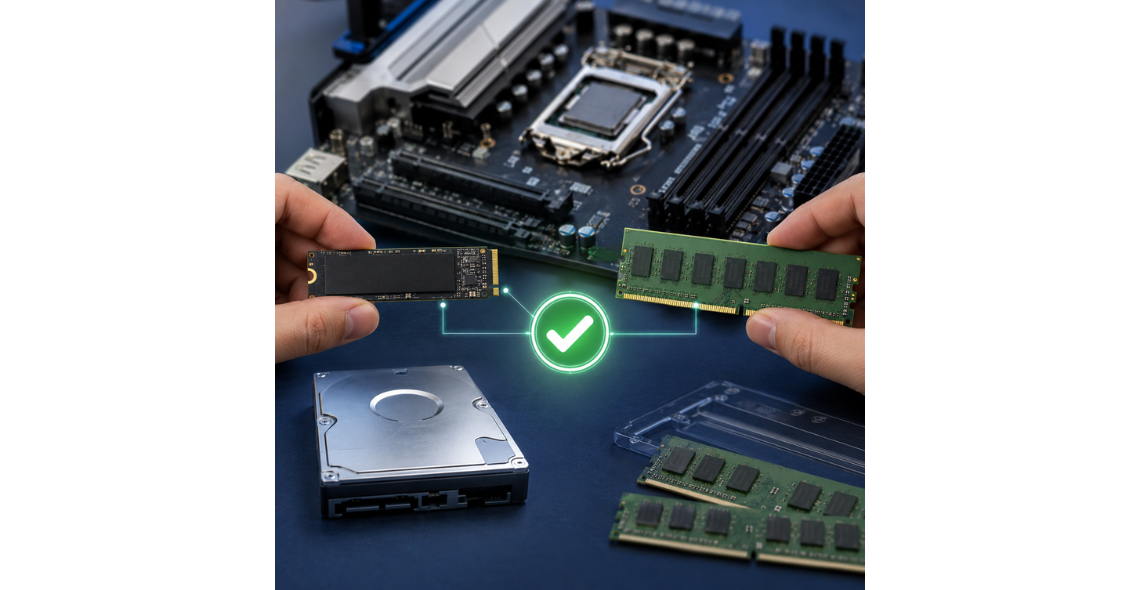
Upgrading storage or memory looks deceptively simple: swap a drive, add a module, enjoy faster performance and more capacity. In practice, many upgrade projects fail or underdeliver because the new component is not truly compatible with the system it is meant to improve. Compatibility validation is the process of confirming, in advance, that an SSD, hard drive, memory module, or related component will function correctly in a specific device and within a specific environment. It goes beyond “it fits in the slot” and asks whether the system firmware, controller, power budget, form factor, signalling, thermals, and configuration rules all align.
In business settings, the stakes are higher than a disappointing benchmark score. A compatibility mistake can lead to downtime, data loss risk, intermittent faults that are hard to diagnose, and time-consuming returns. It can also undermine security and compliance if a device no longer meets encryption, auditing, or lifecycle management expectations. Even when hardware does work, it may run in a reduced mode, such as memory operating at a lower speed or storage links negotiating down, leaving performance gains on the table.
Compatibility validation is therefore a risk-reduction discipline. It helps ensure that upgrades deliver predictable results, maintain reliability, and support operational requirements across desktops, laptops, workstations, servers, and storage appliances used in the UK.
What compatibility validation means for storage and memory upgrades
Compatibility validation means verifying that an upgrade component is supported by the target system’s hardware design and firmware, and that it will operate reliably under real workloads. It has three layers: physical compatibility, electrical and protocol compatibility, and platform support.
Physical compatibility covers dimensions and connectors. For storage this includes 2.5-inch versus 3.5-inch drives, thickness limits in laptops, M.2 lengths, and whether a bay or caddy is required. For memory it covers the correct form factor such as DIMM or SO-DIMM, notch position, and whether there are free slots or a maximum module height due to cooling shrouds.
Electrical and protocol compatibility is where most surprises occur. For memory, this includes DDR generation, supported speeds, voltage, rank and density, and whether error correction is required. For storage, it includes SATA versus NVMe, PCIe generation and lane support, link negotiation behaviour, and whether the system can boot from the selected interface. Two M.2 devices can look identical but use different protocols, and some slots support only one.
Platform support brings in BIOS or UEFI firmware, chipset and CPU memory controller limits, RAID or HBA compatibility, and vendor qualification lists where applicable. It also includes operational features such as power-loss protection expectations, drive health monitoring support, and whether the system’s management tools can read SMART attributes consistently.
Ultimately, compatibility validation is not a one-off tick box. It is a structured check that the component will be recognised, configured correctly, deliver expected performance, and remain stable over time, including after firmware updates and under sustained load.
Common compatibility risks and how they arise
Storage and memory upgrades fail for predictable reasons, many of which stem from assumptions based on appearance or marketing labels rather than platform constraints. One common risk is selecting the wrong interface. An M.2 SSD may be NVMe or SATA, and an M.2 slot in a laptop or small form factor PC might support only one. Even with NVMe, older platforms may be limited to fewer PCIe lanes or lower generations, reducing performance and sometimes causing boot issues if firmware support is incomplete.
Capacity support limits are another source of trouble. Some systems have maximum addressable storage per bay or per controller, and some older BIOS implementations struggle with larger boot drives unless firmware is updated. With memory, maximum capacity is governed by chipset, CPU, motherboard topology, and module density. A system that supports 64 GB total may not accept 32 GB modules if it only supports certain ranks or densities, even if the total is within the stated maximum.
Memory mixing is a major cause of intermittent instability. Combining different speeds, timings, ranks, or voltages can lead to the system downclocking, disabling dual-channel operation, or becoming unstable under load. ECC and non-ECC mixing is typically unsupported, and registered or load-reduced modules are not interchangeable with unbuffered modules. In servers and workstations, population rules often require matched sets across channels. Ignoring these rules can reduce performance or prevent boot.
Thermals and power are less visible but equally important. High-performance NVMe drives can throttle in cramped enclosures, leading to inconsistent performance. Some systems do not provide adequate airflow over M.2 slots, or use thermal pads and heatsinks that must be installed correctly. For 2.5-inch drives, power budgets on certain backplanes can affect spin-up behaviour, and some enclosures are sensitive to peak current draw.
Finally, firmware and feature mismatches can cause subtle issues. Self-encrypting drives may require specific BIOS settings or management support. RAID controllers may have strict drive qualification or require particular sector sizes. Advanced format drives, 512e versus 4Kn, can affect compatibility with older operating systems or controller firmware. These issues often appear only after deployment, which is why validation before purchase and installation matters.
How to validate compatibility before purchasing or installing
Effective validation starts with accurate system identification. Record the make and model of the device, motherboard or system board part number where available, current BIOS or UEFI version, and for servers the storage controller or RAID/HBA model. For memory validation, capture the existing module specifications using reliable tools or by reading the label: DDR generation, capacity, speed, CAS latency, ECC status, registered or unbuffered type, and rank. For storage, identify available bays and interfaces, whether the system supports NVMe boot, and whether there are any shared lanes that disable ports when certain slots are populated.
Next, check authoritative documentation. The system manufacturer’s maintenance manual and technical specifications often list supported memory types, maximum capacities, and storage interface constraints. For business-class devices, consult platform configuration guides and any published qualification lists. Where lists exist, they provide the most predictable route to success, particularly for servers where controllers and backplanes can be strict.
Then match the upgrade to the workload and environment. If the goal is to accelerate database or virtualisation workloads, endurance and sustained performance matter more than peak read speeds. For general office use, reliability and compatibility may outweigh headline throughput. Consider thermal design and whether an NVMe drive needs a heatsink or a thermal pad in that chassis.
Before installation, plan change control. Ensure backups exist, especially for storage migrations. If changing a boot drive, verify recovery media and encryption recovery keys are available. Confirm BIOS settings for storage mode, such as AHCI versus RAID, and note that changing modes can prevent an existing operating system from booting.
After installation, validate operation with a short acceptance test. Confirm the component is detected in BIOS or UEFI and within the operating system. For memory, run a reputable memory test and monitor for corrected errors if ECC is present. Confirm the system is operating in the expected channel mode and speed. For storage, check link speed, partition alignment, and that SMART health data is readable. Run a sustained workload test to observe thermals and throttling. Finally, document the configuration so future maintenance and replacements remain consistent.
Legal and compliance considerations for upgrades in the UK and EMEA
Upgrades in business environments are not only technical decisions. They can affect compliance, warranty obligations, data protection controls, and industry-specific governance. In the UK, organisations handling personal data must ensure that changes to endpoints and servers do not weaken confidentiality, integrity, or availability. A storage upgrade that changes encryption behaviour or disables secure boot related settings can create risk. Similarly, replacing a drive in a way that results in improper disposal of the old media can raise data security concerns. Secure handling, sanitisation, and evidence of disposal are often required under internal policies and contractual obligations, especially when devices store personal or sensitive information.
Warranty and support terms are another practical consideration. Some systems allow user-installable upgrades, while others require authorised service processes. If a device is under a support contract, using unapproved parts or breaking seals could affect eligibility for service. Compatibility validation therefore also includes confirming whether the planned upgrade path aligns with support conditions and whether firmware updates are approved in managed environments.
There are also product compliance and safety considerations. Components used within the UK and across EMEA should meet relevant conformity requirements for electrical safety and electromagnetic compatibility as applicable to their category. While many internal components are not individually labelled in the same way as complete systems, organisations procuring hardware typically need confidence that the supply chain and product documentation support compliance requirements.
For regulated sectors, additional controls may apply. Audit trails for asset changes, documented configuration baselines, and validation evidence can be important. If drives are used in environments requiring encryption, confirm that the chosen approach is compatible with existing management processes, including key recovery and incident response. For systems that rely on secure erase capabilities, ensure the selected storage supports the required commands and that the controller path does not block them. Compliance-friendly upgrades are those that preserve security posture, maintain supportability, and leave a clear record of what changed and why.
FAQs
How do I know whether my system supports NVMe SSDs or only SATA?
Start by identifying the exact model and reviewing its technical documentation, paying close attention to storage interface notes. The presence of an M.2 slot does not guarantee NVMe support. Some systems provide an M.2 slot wired for SATA only, others for NVMe only, and some support both depending on the specific keying and how the slot is routed. BIOS or UEFI setup screens sometimes list detected NVMe devices separately, which can be a clue, but that helps only after installation. You can also check existing storage configuration: if the system already has an NVMe drive, you have strong evidence. If you are upgrading a boot drive, confirm “NVMe boot” support in firmware notes. When in doubt, validate against the system’s service manual or platform specification, since third-party listings can be inconsistent.
Why does memory sometimes run at a lower speed after an upgrade?
Memory speed is set by what the platform can support and what all installed modules can run together reliably. If you mix modules with different rated speeds or timings, many systems will choose the safest common settings, which can mean downclocking to the slowest module’s profile. The CPU’s memory controller and the motherboard layout can also limit achievable speeds, especially as capacity increases or more slots are populated. Some systems reduce speed when all slots are filled, or when using dual-rank modules. Another factor is whether the system supports XMP or similar profiles, and whether those profiles are enabled. In business devices, firmware often prioritises stability over performance and may ignore aggressive profiles. Compatibility validation should therefore aim for matched modules where possible and check platform limits for both speed and population rules.
Can incompatible storage or memory damage my system?
Physical damage is uncommon if you use the correct form factor and do not force components into slots. Most compatibility issues present as failure to boot, instability, or reduced performance rather than immediate damage. That said, there are scenarios where risk increases. Using the wrong memory type, such as attempting to install incompatible registered modules into an unbuffered-only platform, can prevent boot and may stress components if forced. Poor-quality or incorrect power adapters for drive enclosures can create electrical issues. Overheating is a more realistic concern for high-performance NVMe drives in poorly ventilated systems, where sustained thermal throttling can reduce performance and, in extreme cases, contribute to premature wear. The best protection is to validate specifications, handle components with proper anti-static precautions, and verify cooling and firmware support before relying on the upgraded system in production.
What is the difference between ECC and non-ECC memory, and how does it affect compatibility?
ECC memory includes additional bits and logic to detect and correct certain memory errors, improving reliability for servers and workstations where uptime and data integrity are priorities. Compatibility depends on the CPU and motherboard support for ECC. Even if a system physically accepts ECC DIMMs, it may run them in non-ECC mode or refuse to boot, depending on platform design and firmware. It is also important to distinguish unbuffered ECC from registered ECC, as they are not interchangeable and have different use cases. Mixing ECC and non-ECC modules is typically unsupported and may cause the system to disable ECC or become unstable. If your workloads involve virtualisation, databases, or critical services, ECC can be beneficial, but only when the entire platform supports it end-to-end and it is enabled and reported correctly in system diagnostics.
How should I validate an upgrade when the system will be used for business-critical workloads?
Treat validation as a small acceptance project. Confirm compatibility on paper first using platform specifications and population rules. Plan for backup and rollback, including a way to restore the previous boot drive or memory configuration. After installation, verify detection in firmware and the operating system, then run stress tests aligned to the workload. For memory, a thorough memory test and monitoring of system logs for errors is essential. For storage, confirm sustained write behaviour, thermals under load, and controller compatibility if RAID is involved. Check that monitoring tools can read health data and that alerting works. If encryption is used, validate that it remains enabled and that recovery processes still function. Finally, document results and the final configuration so future maintenance, patching, and incident response teams can rely on accurate information.
Conclusion
Compatibility validation matters because storage and memory upgrades are not generic swaps. They interact with firmware, controllers, electrical limits, thermals, and configuration rules that vary widely across laptops, desktops, servers, and storage platforms. When validation is skipped, the most common outcomes are wasted spend, reduced performance due to negotiated-down modes, and intermittent stability issues that are expensive to diagnose. In the worst cases, an upgrade can trigger unplanned downtime, complicate security controls like encryption, or create support and compliance headaches that outweigh any performance gain.
A disciplined approach is straightforward: identify the exact system, confirm interface and population rules, match the component specification to the platform and workload, and test for detection, stability, performance consistency, and manageability. Just as importantly, keep good records so that future replacements remain compatible and supportable.
For UK organisations planning upgrades across fleets or critical systems, selecting the right parts and validating them against real platform constraints is the difference between predictable improvement and operational risk. If you want a practical starting point for identifying compatible storage and memory options, visit https://www.originstorage.com/.


Comments
There are currently no comments, be the first to comment.